
How to Merge PDFs and Reorder Individual Pages
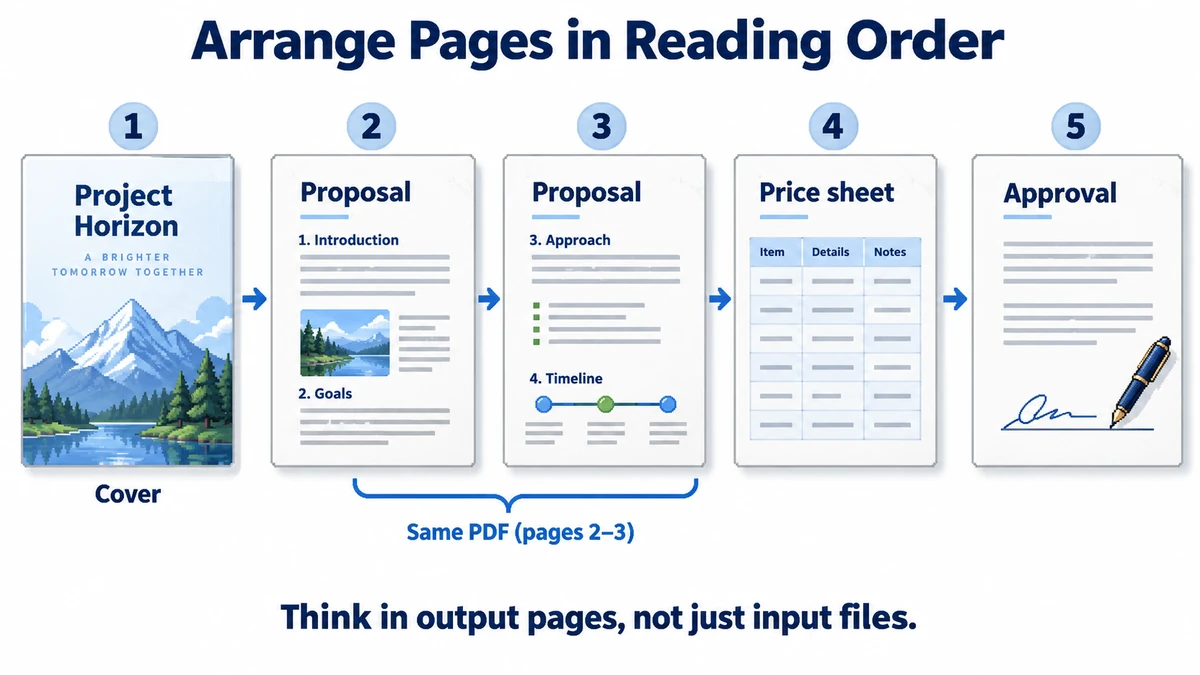
A proposal, price sheet, and photographed signature page need to become one PDF, but simply appending whole files puts a page in the wrong place. The reliable approach is to think in output pages, not input files: place every page in reading order, then inspect the exported document.
Work backwards from the final reading order
Suppose the final document should be: cover, proposal pages 1–2, price sheet, signed approval. Upload the proposal and price-sheet PDFs, then look at the page list on the left. That list is the output, not merely a list of source files. A two-page PDF appears as two separate page cards, so you can place the price sheet between them or remove one without editing the original.
- Add the PDFs together, or add one and then use the same panel to add more. Check the page count after each upload; a PDF with an unexpected blank page is easier to catch now.
- Drag a page card to its new position. If dragging is awkward, select the page and use Up, Down, or Move to. The page number on each card is its position in the final file.
- Drop a PNG, JPG, or WebP signature image into the sidebar at the point where it belongs. Each image becomes one PDF page. A tall phone photo may become a tall page, so preview it before continuing.
- Select unwanted pages with their checkboxes and use Delete selected. The originals remain unchanged; Undo restores the last page change while you are still working.
- Switch to the two-page preview if you need to inspect a spread. Fit page keeps the selected sheet visible without repeatedly adjusting zoom.
Check more than the thumbnails
Thumbnails are for order, not for proofreading. After downloading, reopen the PDF in a regular reader and check the first, middle, and last pages, plus every page boundary where two files were joined. Confirm text is readable, a photographed page is upright, and no blank or duplicate sheet slipped in.
| Problem | What to check |
|---|---|
| Wrong page order | Compare the sidebar sequence with a written list of the intended output. |
| Image page looks oversized | Crop or resize the source photo before inserting it; the tool keeps its natural proportions. |
| Form or signature behaves differently | Use the original document for legally or operationally important fields; merging may change document-level features. |
| File will not open | Password-protected PDFs are not supported; unlock them with authorization first. |
When this tool is not the right final step
Merging is a structural edit. It can invalidate a digital signature, and interactive forms or other document-level features may not survive. If the document has a legally important signature or live form fields, preserve the originals and verify the output in the software your recipient will use. For a simple presentation handout, invoice packet, or portfolio, page order and visual review are usually the main checks.
Choose the easiest reorder method for the distance
Drag a card for a nearby swap, use Up or Down for a one-page adjustment, and use Move to for a distant destination. When you are moving page 28 to position 3, entering the destination is less error-prone than repeatedly scrolling a long list. Confirm the new output number and the neighboring pages afterward.
For deletion, use the individual trash control for a single duplicate and checkboxes for several unrelated pages. Review the selected count before Delete selected. Undo restores recent page changes, but adding a new source clears the history. If a deletion was wrong, undo it before adding more files; your originals always remain available for a fresh workspace.
Prepare a phone photo before adding it as a page
The merger does not scan, deskew, sharpen, or OCR a photograph. Crop away the desk, correct orientation, and confirm the handwriting is readable in an image editor before insertion. A photo of a signature is image content, not a cryptographic digital signature. Do not treat inserting one as verification of who signed.
Each photo keeps its proportions rather than being placed into a fixed A4 template. If consistent paper size and margins are required, prepare the images with Image to PDF first, then merge that PDF. The viewer’s Fit page makes different page shapes fit the screen; it does not normalize the exported paper dimensions.
Use a short send-ready checklist
- Page count matches the intended cover, content, and attachments.
- Every joined boundary is in reading order and there are no duplicate blank pages.
- Photographs are upright and text is readable outside the thumbnail view.
- Essential forms, links, and signed originals are reviewed separately.
- The downloaded file opens in the recipient’s expected reader.
Try the workflow
Add PDFs and images, reorder pages in the sidebar, and download the result in your browser.
Open the Merge PDF workspace →