
WebP vs PNG vs JPG: Which Format for Your Images?
"Use WebP for everything" is the advice you will hear most and it is wrong often enough to matter. The three formats compress in fundamentally different ways, and which one wins depends on what is in the picture — sometimes by a factor of several. Here is how each one works and how to decide per file.
How each format compresses
JPG: lossy, tuned for photographs
JPG splits the image into 8×8 blocks, converts each to frequency components, and discards the high-frequency detail your eye is least likely to notice. The quality slider controls how aggressively it discards. This works spectacularly well on photographs, where detail is fine-grained and irregular and small errors hide in the noise.
It works badly on anything with hard edges. A black line on white is pure high-frequency information, exactly what the format throws away, so you get the telltale ringing halo around text and outlines. JPG also has no alpha channel at all — not a weak one, none. Save a transparent image as JPG and the transparency is replaced with a solid color, usually black or white, permanently.
PNG: lossless, tuned for flat graphics
PNG never discards pixel data. It predicts each pixel from its neighbours, stores the small differences, and runs the result through DEFLATE. Long runs of identical or near-identical pixels compress to almost nothing, which is why flat-color graphics, screenshots of UI, line art, and pixel art shrink so well.
The format has two modes worth distinguishing. Truecolor PNG stores full 24-bit color plus optional alpha. Palette PNG (PNG-8) stores an index into a table of up to 256 colors, so each pixel costs one byte instead of four. For flat graphics that genuinely use few colors, palette mode is dramatically smaller and completely lossless. Most people never reach for it, and it is the reason PNG sometimes beats WebP outright.
WebP: both, in one container
WebP has two separate modes that share a file extension. Lossy WebP uses block prediction borrowed from video coding — it typically produces files 20–30% smaller than JPG at comparable perceived quality. Lossless WebP uses a different scheme with more sophisticated prediction than PNG and usually lands 20–30% under a truecolor PNG.
Crucially, both modes support alpha. That is WebP's real advantage: before it, a transparent image had to be PNG, which meant lossless, which meant large. Lossy WebP with alpha lets you compress a cut-out photo the way you would compress a regular one.
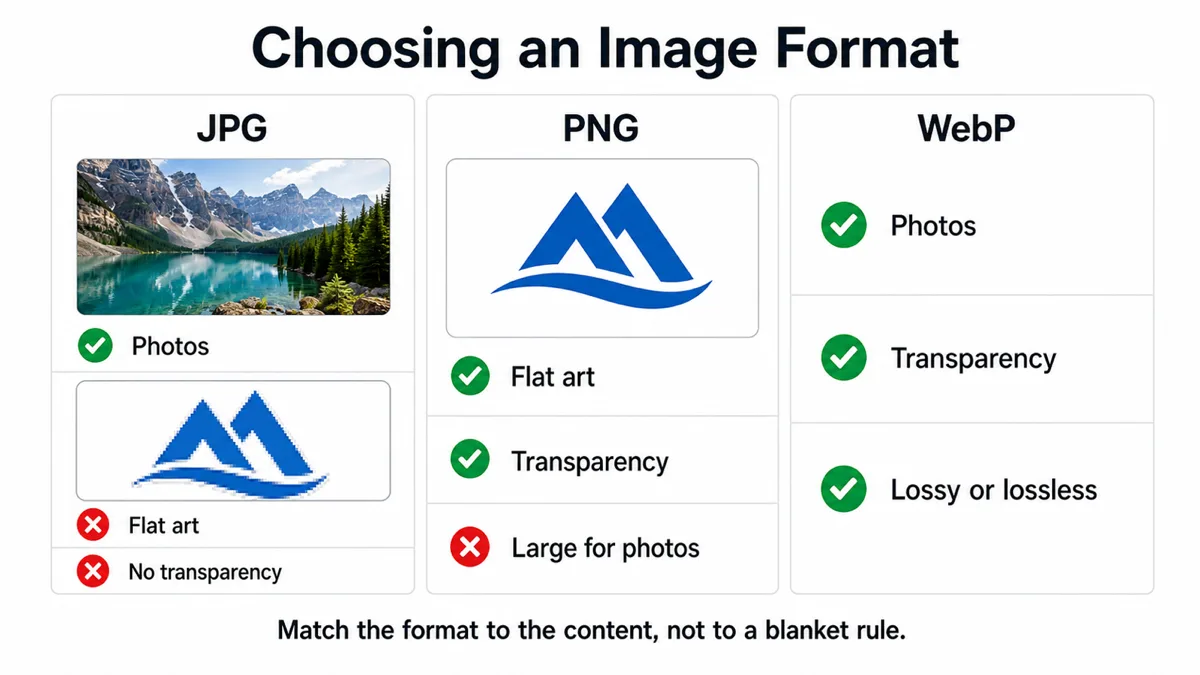
The comparison at a glance
| JPG | PNG | WebP | |
|---|---|---|---|
| Compression | Lossy only | Lossless only | Lossy or lossless |
| Alpha channel | None | Yes, 8-bit | Yes, both modes |
| Best for | Photographs | Flat graphics, pixel art, screenshots | Photos on the web, transparent photos |
| Weak at | Text, line art, transparency | Photographs (very large files) | Few-color flat art vs palette PNG |
| Animation | No | APNG, patchy support | Yes |
| Repeated re-saving | Degrades each time | Safe | Degrades in lossy mode |
| Browser support | Universal | Universal | Universal since ~2020 |
| Non-browser tools | Everywhere | Everywhere | Good but not guaranteed |
Choosing by what is in the image
Photographs, no transparency
Lossy WebP at quality 80 is the smallest sensible answer, with JPG at quality 80 as the compatible fallback. Both are fine; the WebP is typically a quarter smaller. A content-negotiated <picture> element serving WebP with a JPG fallback gets you both, though in 2026 the fallback is mostly belt-and-braces.
Flat graphics, logos, pixel art, screenshots of UI
PNG, and try palette mode. This is where the "WebP for everything" rule fails hardest. A logo using twelve colors stored as a palette PNG can be a few kilobytes; the same logo as lossy WebP at quality 80 is often larger, because lossy coding spends bits describing block-level detail that a palette encodes for free — and it adds artifacts to perfectly flat regions. Lossless WebP is competitive and sometimes wins, but the margin is small enough that it is worth exporting both and comparing.
Sprites and anything needing alpha
PNG. It is the format every game engine, editor, and asset pipeline reads without question, it is lossless so repeated edits do not accumulate damage, and sprites are small enough that file size is rarely the constraint. Lossless WebP is a reasonable shipping format if your engine supports it; keep the PNG as your working copy either way. Never JPG — no alpha means your carefully cut-out sprite arrives with a white box around it.
Photographs with transparency
This is lossy WebP's home turf and it is a genuine capability gap it fills. A cut-out product photo on a transparent background as PNG might be 800KB; as lossy WebP with alpha at quality 80 it can be under 100KB with no visible difference. PNG is the only fallback if you need one, and it will be several times larger.
Two examples worth knowing
Concrete numbers make the trade-offs easier to internalize. Two cases from real optimization passes:
- A 606KB PNG social card re-encoded as an 81KB JPG. The card was a photographic background with a text overlay, exported as PNG because that is the default in most design tools. PNG is a poor fit for photographic content, so the file was huge; at JPG quality 82 the visible difference is nil at the size anyone ever sees it. That is an 87% reduction from changing one dropdown.
- Page background images dropped roughly 57% converting PNG to WebP. These were large, soft, gradient-heavy images — smooth content with no hard edges and no transparency, exactly what lossy compression handles best. Same visual result, less than half the bytes.
Both wins came from matching the format to the content rather than applying a blanket rule. Run the same test on a flat-color icon set and PNG would have won both times.
The social image exception
One place to deliberately not use WebP: Open Graph and Twitter card images. Those URLs are fetched by crawlers and link-preview bots — Slack, Discord, iMessage, WhatsApp, LinkedIn, RSS readers, in-app browsers, and a long tail of internal tools — not by the modern browsers WebP support statistics describe.
Support across that population is meaningfully worse, and the failure mode is bad in a specific way: rather than an error you can see, your link simply renders with no image at all, and you find out weeks later when someone mentions it. The cost of using JPG instead is maybe 30% more bytes on one file that is fetched by infrastructure, not by users on metered connections.
Similar caution applies to email. Email clients are their own compatibility universe and several still have no WebP support. Attachments and images destined for email should be JPG or PNG.
A decision procedure
- Does it need transparency? If no, skip to step 3. If yes, JPG is out entirely.
- Is the transparent image photographic? Photographic content with alpha → lossy WebP. Flat art or sprites with alpha → PNG.
- Is it a photograph? Yes → lossy WebP, or JPG where compatibility matters. No → continue.
- Flat colors and hard edges? Export palette PNG and lossless WebP, compare the two files, ship the smaller one. Do not assume.
- Is it a social card, an email image, or an asset for an unknown pipeline? Override everything above and use JPG or PNG.
Step 4 is the one people skip. Exporting two files and comparing byte counts takes fifteen seconds and is more reliable than any rule of thumb, because the answer genuinely depends on the specific image.
Our Sprite Sheet Slicer exports to PNG, JPG, or WebP with a quality control for the lossy formats, so you can cut a sheet once and try two formats without leaving the page. For sprites, PNG remains the safe default — the export format matters far more for the finished web assets than for the intermediate frames.
Frequently asked questions
Is WebP safe to use without a fallback now?
For browsers, effectively yes — every current browser has supported it since around 2020, when Safari added it. The remaining gaps are outside browsers: older desktop applications, some email clients, crawler and link-preview bots, and occasional CMS upload validators. Judge by who fetches the file, not by the browser support table.
Can converting PNG to WebP ever make the file bigger?
Yes, routinely, for flat graphics with few colors — especially against a palette PNG. Lossy WebP has a floor on how few bits it spends per block, while a palette PNG with long runs of one color compresses close to nothing. Always compare the actual output rather than trusting the general claim that WebP is smaller.
What about AVIF and JPEG XL?
AVIF compresses better than WebP, particularly at low quality, and browser support is now broad, though encoding is slower and tooling outside browsers is thinner. JPEG XL is technically strong but its browser support story has been unstable. WebP remains the pragmatic default; AVIF is worth adding as a first <source> in a picture element when bytes really matter.
Does re-saving a JPG repeatedly really degrade it?
Yes, when the image is decoded and re-encoded, and the same applies to lossy WebP. Each pass quantizes already-quantized data and the artifacts compound. Keep a lossless master — PNG or your editor's native format — and export lossy versions from it, rather than editing the lossy file in place.
Convert it both ways and compare the bytes
Step 4 above is the one worth actually doing rather than guessing at. The Image Converter runs PNG, JPG, and WebP in every direction, in batch, and fills the background when alpha would otherwise be lost on the way into a JPG. Export the same file twice, compare the sizes, ship the smaller one. If the format is already right and you just need it lighter, the Image Compressor is the other half of this.
Open Image ConverterOpen Image Compressor