
How to Turn a GIF into a Sprite Sheet Without Ghost Frames
You extracted a GIF and several frames contain pieces of the previous pose. That usually means the export saved GIF update rectangles as if they were full pictures. Here is how to get complete frames and choose an output your game can use.
Why saving every GIF image block is not enough
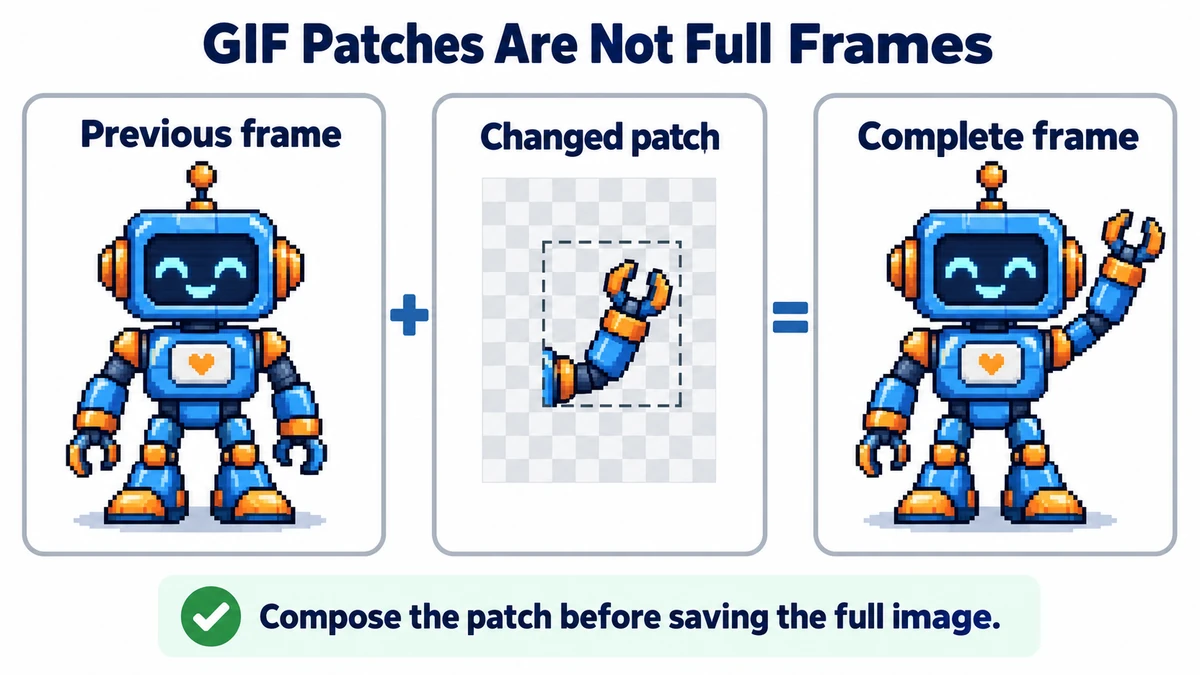
A GIF animation is not always a stack of full-size pictures. A later frame can store only the rectangle that changed. It also carries a disposal instruction that tells the player what to do with the previous drawing before applying the next one. If an extractor ignores that instruction, old arms, feet, or shadows remain visible as trails. If it saves only the rectangle, the exported PNGs come out at different sizes.
For a sprite sheet, each cell needs a complete image on a consistent canvas. The correct sequence is: apply the previous frame's disposal rule, draw the current update, then copy that complete canvas as the PNG for this moment. ImageMint's GIF tool performs that composition before exporting; you do not need to manually place patch frames.
A concrete 12-frame conversion
- Open the source GIF in GIF to Sprite Sheet. Check the reported frame count and canvas size. Twelve frames at 64 × 64 pixels should give twelve full 64 × 64 outputs, even if the internal GIF updates are smaller.
- For a grid PNG, set Pictures per row to 4. The resulting sheet has four columns and three rows, so its expected dimensions are 256 × 192 pixels. This simple dimension check catches a surprising number of wrong exports.
- Save the grid PNG when your engine wants one evenly spaced sheet. Save the ZIP when you want separate numbered PNGs. The ZIP also contains
frame-delays.json; keep it if the original GIF pauses on some poses longer than others. - Open the result in your target editor and inspect the first, middle, and last frames. Check that no earlier pose lingers and that the character remains in the same 64 × 64 area.
The timing trap: one sheet cannot tell you how fast to play
A PNG sheet stores pixels, not frame durations. Imagine a 12-frame GIF in which eleven frames last 80 ms but the last holds for 400 ms. Playing the exported sheet at a fixed 12 fps makes every frame about 83 ms, so the pause disappears. That is not an extraction error: the timing simply lives outside the PNG. Read the delays in the ZIP and recreate the held frame in your engine, or repeat that last frame as a deliberate approximation.
Choose the output for the next step
| You need | Save | Remember |
|---|---|---|
| One uniform texture for an engine | Grid PNG | Keep column count and cell size for import. |
| Editable frames or nonuniform timing | ZIP of PNGs | Keep frame-delays.json with the images. |
| A smaller number of selected poses | ZIP, then edit frames | Dropping frames changes the loop duration unless timing is adjusted. |
ImageMint limits GIF inputs to 20 MB, 100 frames, 1024 pixels per side, and 20 million total frame pixels to protect the browser tab. A larger source needs preprocessing in a desktop editor. Only reuse animation you own or have permission to use.
Keep an uneven pause when recreating the animation
For the twelve-frame example, the total duration is 11 × 80 + 400 = 1280 ms. If the target only supports one fixed duration, you can approximate the held pose by repeating it five times at 80 ms. That makes sixteen timeline entries from twelve distinct images and retains the total duration. This is a deliberate timeline edit, not an option automatically applied by the extractor.
Do not confuse a repeated image with an unwanted duplicate. Two visually matching frames may encode a deliberate hold. Removing one without transferring its delay shortens the animation. Save an untouched extraction first and edit a copy when optimizing a sequence.
Import a sheet without playing trailing blank cells
If ten 64 × 64 frames are placed in four columns, the output is 256 × 192: twelve positions but only ten real frames. The last two cells are blank. Record the cell size, column count, and actual frame count beside the file. A grid importer that infers frame count from width and height alone needs its animation range corrected.
When a sheet export exceeds a side limit, changing columns can make its shape fit, but does not reduce the number of decoded frames. Twelve 64 × 64 frames occupy 49,152 frame pixels before any unused cells. A tiny compressed GIF can still decode into a large sequence, so reduce resolution or frames in an editor when the total-pixel limit is the issue.
Final extraction checklist
- Output frames have the reported full canvas dimensions.
- The middle and last frames do not contain an unintended previous pose.
- The receiving application uses the real frame count rather than every sheet cell.
- Unequal delays are preserved or consciously approximated.
- The original GIF and your permission to use it are retained.
Try the workflow
Open a GIF locally, then save a uniform PNG sheet or a ZIP of full frames and timing data.
Extract GIF frames →