
Choosing Frame Rates for Sprite Animation
"What fps should my animation be?" usually gets asked as if it has one answer. It has two separate ones — how many unique frames an action has, and how quickly those frames play back — and conflating them is why animations either look sluggish with plenty of frames to spare, or choppy despite playing fast.
Frame count and playback speed are different decisions
A walk cycle with 4 frames played at 8 frames per second takes half a second per cycle. A walk cycle with 8 frames at 8fps takes a full second, twice as long, for the same playback speed. Frame count decides how much movement detail exists inside the loop; playback speed decides how fast that loop repeats. You can have a detailed 12-frame cycle that plays too slowly to read as walking, or a blunt 2-frame cycle that plays at exactly the right cadence and still communicates the action clearly, because human motion perception cares more about timing than detail.
This matters practically because the two knobs trade off against each other for a fixed art budget. If you can only afford to draw 4 frames of an attack, you are not stuck with a bad animation — you adjust the playback speed and hold timing (more on that below) until those 4 frames read correctly, rather than assuming you need more frames to fix a timing problem.
What 8, 12, and 24fps actually feel like
These numbers describe how often the displayed frame changes, independent of the game's own render frame rate.
- 8fps — a new frame roughly every 125ms. Distinctly stepped; each pose is visible long enough to register individually before the next appears. Reads as deliberate, weighty, or intentionally retro rather than smooth.
- 12fps — a new frame roughly every 83ms. The traditional "on twos" rate from hand-drawn animation (drawing new content every other frame of a 24fps film). Smooth enough to read as fluid motion for most game actions while still being cheap to draw.
- 24fps — a new frame roughly every 42ms, matching film frame rate. Motion reads as fully smooth with no perceptible stepping. Needs roughly twice the frame content of 12fps to fill the same duration, or the same frame count played over half the time.
None of these is objectively correct. The right one depends on what you are animating and what feeling you want it to carry, which is why the next section breaks it down by action rather than giving one number for the whole game.
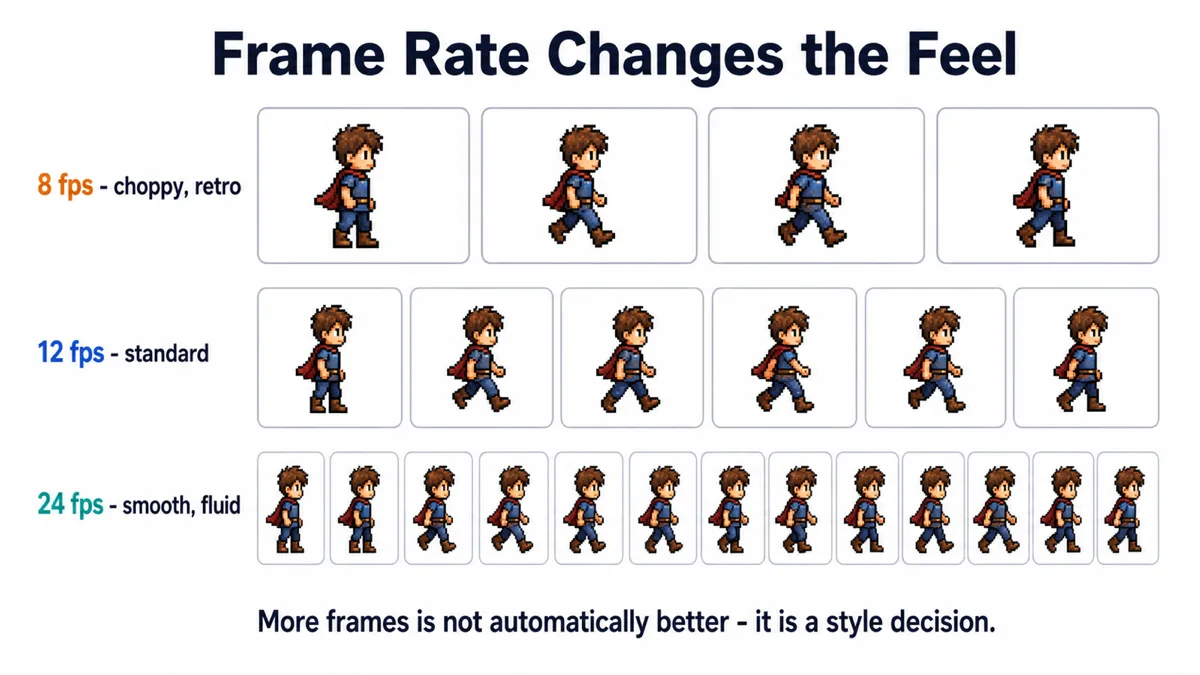
Why retro games used low fps — and why it is a style choice now
Consoles and early PCs animating at 6–10fps were not making an artistic choice first; they were working under a hard memory ceiling. Every additional frame was more sprite data that had to fit in cartridge ROM or system RAM, both of which were measured in kilobytes. A studio animating a character at 24fps instead of 8fps needed roughly three times the frame budget for every single action in the game, multiplied across every character, and that budget usually did not exist. Low frame counts were a direct consequence of that constraint, and animators got very good at choosing which frames mattered most within it.
That constraint is essentially gone today — storage and memory are not what limit frame count for a 2D game. Choosing 8fps now is a deliberate style decision, usually to evoke that era's look, or because a chunky, stepped motion genuinely suits the art style being used. It is worth knowing which reason applies to your project, because "low fps because retro" and "low fps because we ran out of frame budget" produce the same output through very different reasoning, and only one of them is a constraint you can freely ignore.
Recommended rates by action
| Action | Typical frame count | Typical playback | Why |
|---|---|---|---|
| Idle | 2–4 | 4–8fps | Subtle motion (breathing, blinking) does not need speed to read |
| Walk | 6–8 | 10–14fps | Needs a clear rhythm; too slow reads as sluggish or drunk |
| Run | 6–10 | 14–20fps | Faster cadence sells speed even with the same frame count as a walk |
| Attack | 3–6 | Uneven, weighted to anticipation/impact | Impact needs to land on a single frame, not blur across several |
| Idle-to-alert transitions | 2–3 | 8–12fps | A quick, readable state change matters more than smoothness |
Treat these as a starting point, not a rule. The only real test is watching the loop at actual game scale and speed — a number that looks right in an animation program at a large preview size can look completely different once the sprite is 48 pixels tall on a moving screen.
Hold frames and timing
Not every frame in a sequence needs equal screen time. A hold frame is a pose displayed for longer than the surrounding frames — the wind-up before a punch, the peak of a jump, the moment just before a sword swing lands. Holding these poses slightly longer than a uniform frame rate would gives the viewer time to register anticipation before the fast part happens, which is a form of easing: motion is rarely linear, and neither should its timing be.
In practice this means an attack animation is not actually N frames at a constant fps — it is a wind-up frame held for 150ms, two fast transition frames at 40ms each, an impact frame held for 100ms, and a recovery frame held for 200ms. Most animation systems let you set per-frame duration rather than a single global rate for exactly this reason. If your tool only supports a fixed rate, you can fake a hold by duplicating the frame you want to linger on, so it occupies two or three ticks instead of one.
Animation fps is not game fps
A game can render at 60 or 120fps while a sprite animation plays at 12fps — these are unrelated numbers. The game's render loop draws every frame regardless; the animation system decides how often to advance to the next sprite frame within that loop, typically by tracking elapsed time and switching frames once a threshold is crossed, not by tying frame advancement to the render tick. Conflating the two is a common mistake for anyone new to sprite animation coming from a background where framerate meant one thing.
This separation is what lets a game with buttery-smooth 60fps camera movement and input response still display deliberately chunky 8fps character animation as a style choice, and it is also why changing your game's target framerate should never require re-timing your sprite animations — if it does, the animation system is incorrectly coupling the two.
Where this lives in common engines
- Unity — the Animation window's sample rate field sets frames-per-second for the whole clip; individual keyframes on the timeline can still be spaced unevenly to create holds within that rate.
- Godot — AnimatedSprite2D and SpriteFrames let you set an fps per animation and, separately, a per-frame duration multiplier for holds on individual frames.
- Custom/engine-agnostic — most hand-rolled sprite animators track an accumulated time value against a per-frame duration array rather than a single fps constant, which is the most flexible approach if you are writing the system yourself.
Frequently asked questions
My walk cycle has plenty of frames but still looks stiff. Why?
Usually a timing problem, not a frame count problem. Check whether every frame is playing for an equal duration — real walking has uneven weight distribution, and a uniform playback rate flattens that out. Try holding the contact frames (foot touching ground) slightly longer than the passing frames.
Is there a minimum frame count for an animation to read correctly?
No fixed minimum — a 2-frame idle blink or a 2-frame attack flash can both read perfectly clearly with the right timing. What matters is whether the pose change communicates the action, not how many in-between steps get you there.
Should all my animations use the same fps for consistency?
Not necessarily. A consistent art style benefits from a consistent frame count or silhouette language, but different actions legitimately move at different speeds — forcing a run cycle to the same fps as an idle usually makes one of the two look wrong.
How do I animate content sliced from a generated sprite sheet with uneven frame sizes?
Pad every frame to the same canvas size and a consistent pivot before wiring up the animation, or frames with different bounding boxes will appear to jitter or drift regardless of how well the timing is tuned. Fix positioning first, then tune fps.
Get clean, consistent frames to animate
Timing only reads correctly if every frame is trimmed and positioned consistently first. Sprite Sheet Slicer's Magic Slice detects each sprite's content bounds from the alpha channel and pads frames to match, so uneven source art does not fight your animation timing. Runs entirely in the browser.
Open Sprite Sheet Slicer