
How to Turn a Sprite Sheet into a GIF That Loops Cleanly
A sheet full of poses is not yet an animation. The cells must be cut at the right size, played in the right order, and timed so the loop closes naturally. A GIF adds one more constraint: it cannot keep all the color and transparency detail of your original PNGs.
Check the grid before uploading
For a sheet that is 256 × 128 pixels with four columns and two rows, each cell is 64 × 64 pixels. ImageMint reads cells left to right, then top to bottom. If the sheet contains padding, uneven cells, or a final row with empty space, a direct rows-and-columns cut can include part of a neighbor or a blank pose. Pre-slice those frames with the Sprite Sheet Slicer and use the separate-pictures option instead.
Give each pose the same canvas size and anchor. A walking character should not move a pixel upward because one frame was trimmed more tightly. Alignment is visible in the preview as a bounce; changing playback speed cannot fix it.
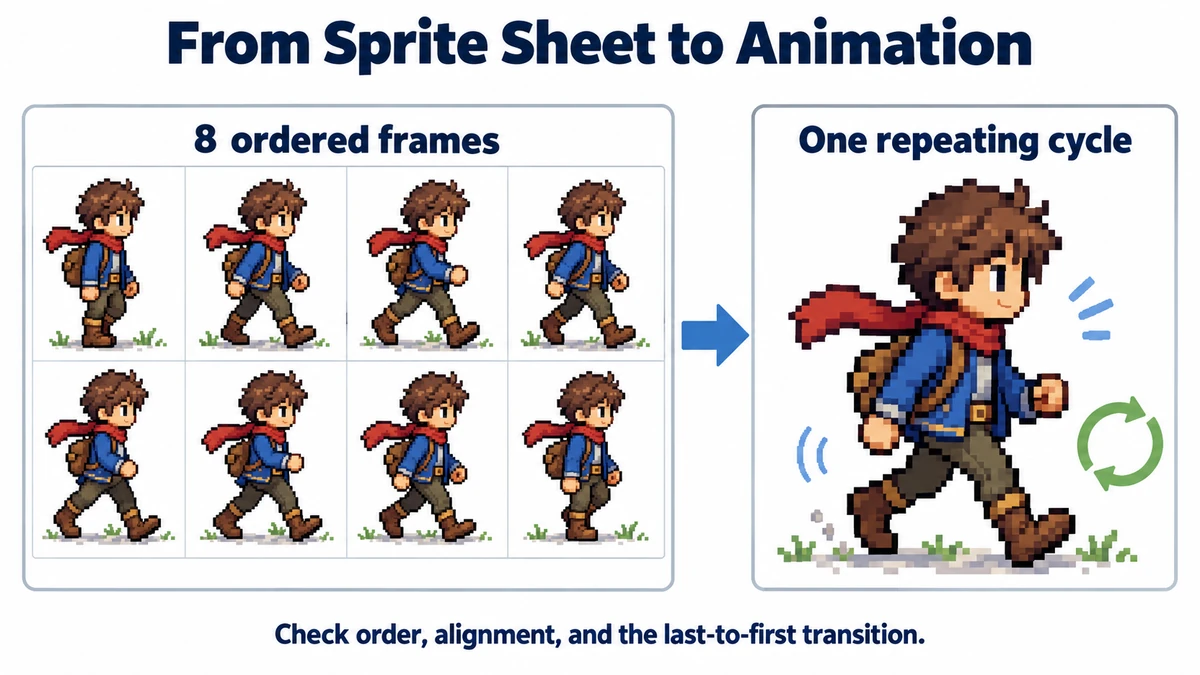
Build and test an eight-frame loop
- Choose Option B for one equal-cell sheet. Enter two rows and four columns before uploading. If you already have eight numbered PNGs, use Option A instead.
- Open the Frame order strip and click through all eight poses. Use the arrow controls to move a misplaced pose earlier or later. The last frame should lead naturally back to the first; avoid including a duplicate first pose at the end unless you intentionally want a hold.
- Play at 8 FPS as a starting test. Eight frames at 8 FPS take one second per loop; at 16 FPS the same drawings complete in half a second. Judge the character's feet and center of mass rather than treating one FPS as universally correct.
- Use Loop if this is an idle or walk animation. Leave it off for a one-time effect such as a hit reaction. Export only when the browser preview has the intended order and rhythm.
Know what GIF changes
GIF has a limited color palette and essentially on/off transparency, while PNG and WebP can preserve smoother semi-transparent edges. Fine shadows or soft antialiasing may look harsher after export. This is most noticeable on sprites with glows, translucent smoke, or subtle color ramps. Compare the downloaded GIF against the PNG preview on both light and dark backgrounds.
The exporter uses one delay for every frame based on your FPS setting, rounded to 10 ms. It does not store an individual hold duration for one special pose. To simulate a longer pause, add a duplicate frame deliberately, or edit per-frame timing in a dedicated animation tool afterward. Keep your original image frames if you need lossless game assets.
| Symptom | Likely cause | Next check |
|---|---|---|
| Character bounces | Inconsistent frame canvas or anchor | Align the source frames before export. |
| Parts of two poses in one cell | Wrong row/column count or padded sheet | Verify sheet dimensions and slice separately. |
| Loop clicks at the end | Last pose does not transition to first | Reorder or remove the extra endpoint pose. |
| Edges look rough | GIF color/transparency limits | Keep PNGs for production assets. |
The GIF export is limited to 1024 pixels per side and 20 million total frame pixels. If an otherwise valid sheet exceeds that, scale it down or export fewer frames. The animation preview can still help you diagnose timing before you choose a smaller export.
Test alignment with a fixed reference point
Before exporting, pick a point that should remain stable: the planted foot in an idle animation, the center of a rotating icon, or the handle of a swinging object. Step through thumbnails and compare that point to the frame boundary. If different-size images are uploaded, the GIF exporter centers them inside the largest canvas; it does not align a chosen foot or handle. Put smaller crops back onto a common canvas before importing.
For a walk cycle, distinguish intentional body motion from a crop error. A head can rise and fall while a planted foot stays on the floor. Moving every pose so its top edge matches would erase that distinction and create a sliding foot. Use the artwork’s intended baseline, not the tightest bounding box.
Verify the downloaded loop, not only the browser preview
An eight-frame loop at 8 FPS previews with 125 ms per pose. The GIF exporter rounds to 130 ms, making the file loop in 1.04 seconds. At 16 FPS it writes 60 ms, making the loop 0.48 seconds. Those differences can matter when comparing an animation against music or another timed effect. A GIF is not a precision-timing master file.
- Reopen the GIF and watch several complete loops. A last-to-first jump is easier to notice after repetition.
- Check the same output on light and dark backgrounds, especially around partially transparent edges.
- Keep the original sheet, row/column settings, and chosen FPS in a project note. The GIF alone is not an editable animation project.
Try the workflow
Load equal-cell sheets or separate frames, reorder them, preview timing, and download an animated GIF.
Preview frames and export GIF →