Turn a Photo into Pixel Art: Resolution, Colors and Dithering
A smaller image is not automatically useful pixel art. Choose a readable silhouette, compare resolutions and limit colors before deciding whether dithering improves the result.
Start with a silhouette, not more settings
A photo may look sharp at full size and become unreadable at 32 pixels. Before converting, ask what must survive: a roof shape, a face, a tool or a logo. Crop distracting surroundings with Image Cropper first if they steal pixels from the subject.
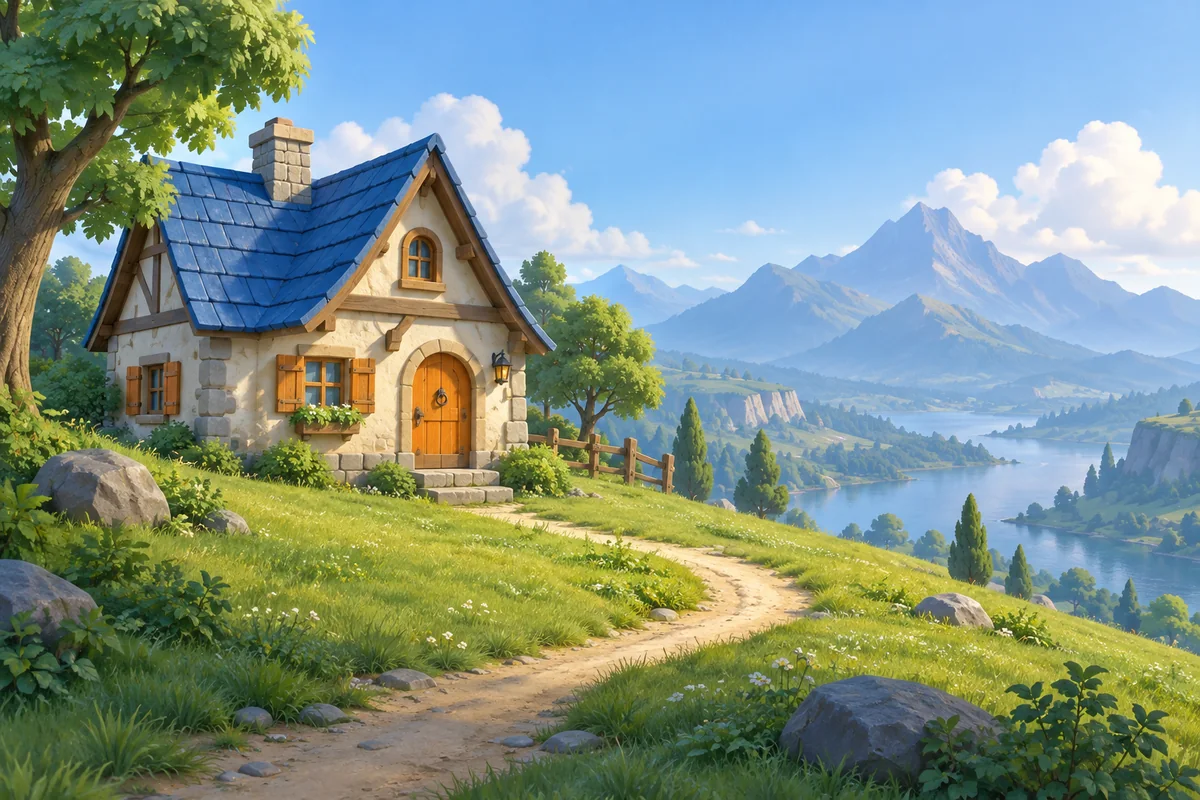
For the cottage example, the blue roof and warm doorway are useful anchors. Fine leaves and roof tiles are less important. The illustration is an AI-generated source example, not a promise that every photograph will produce hand-drawn game art.
Read the long-edge size correctly
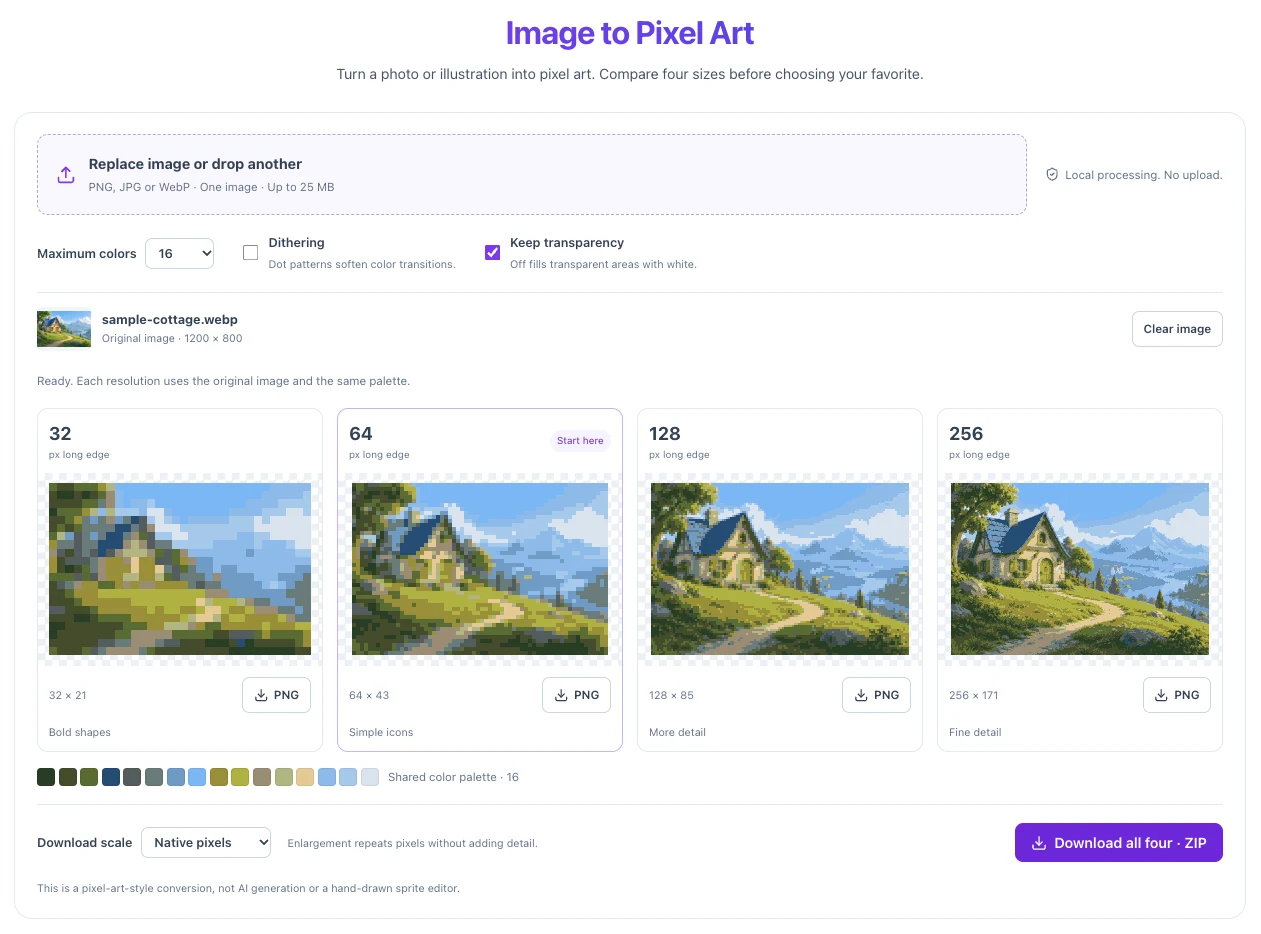
The size presets refer to the longest side, not a square crop. A 1200 × 800 landscape becomes approximately 32 × 21, 64 × 43, 128 × 85 or 256 × 171 pixels. Integer rounding slightly changes the ratio; nothing is intentionally cut away.
Use 32 pixels to judge bold shapes, 64 for simple icons, and 128 or 256 when a scene needs more detail. These are starting points, not game-engine requirements. Inspect the result at its native size before choosing it for an interface.
Choose colors before adding dithering
Start with 16 colors. If the subject and background merge into one muddy shape, try 32 or 64. If the result has too much visual noise, try 8 or 16 and simplify the source. Maximum colors is a ceiling: a flat image may need fewer colors.
All four previews share one palette derived from a 256-pixel sample of the original. This makes the comparison about resolution rather than four unrelated color schemes. A palette is computed for this image; it is not a preset console palette.
Dithering helps gradients, but can hide small details
Dithering places neighboring palette colors in dot patterns to suggest intermediate shades. Try it on skies, soft shadows or smooth materials. Compare it off and on at the same color limit so you can judge the change fairly.
For a tiny icon, the dots can compete with eyes, outlines and other important marks. Keep dithering off when a clean silhouette matters more than a smooth gradient. The converter uses Floyd–Steinberg error diffusion; it does not add new palette colors.
Keep a native PNG before making a larger copy
Native pixels downloads the actual low-resolution result. A 4× download repeats each pixel into a solid block. A 64 × 43 result becomes 256 × 172, but it still contains the same image detail. Keep the native file for later editing.
PNG is the output format because it preserves pixel values and transparency. Keep transparency retains the sampled alpha channel; switching it off composites transparent areas over white. Neither option removes an existing photographic background.
Check the result where you will use it
Place the PNG on the intended light or dark background. Check whether important shapes remain readable and whether dithering looks like unwanted noise. If the asset is too busy, improve the source composition before adding more colors.
For a game, use nearest-neighbor texture filtering where appropriate and test the sprite at its actual display size. This tool does not produce animation frames, indexed-color files or a complete sprite sheet. Use the related tools only after the converted image is ready.
Image Cropper · Pixel Art Upscaler
Try the workflow
Compare four resolutions from one source, adjust the color limit and download native or enlarged PNGs.
Convert an image to pixel art →