
Open Graph Images: Sizes, Formats, and Why Yours Is Not Showing
You share a link, and instead of the image you carefully picked, the platform shows a blank card, a stretched crop, or an image from three deploys ago. Almost every version of this problem traces back to one of a handful of specific, checkable causes — wrong dimensions, an unsupported format, a relative URL, or a cache that has not noticed the file changed.
The 1200×630 standard, and why
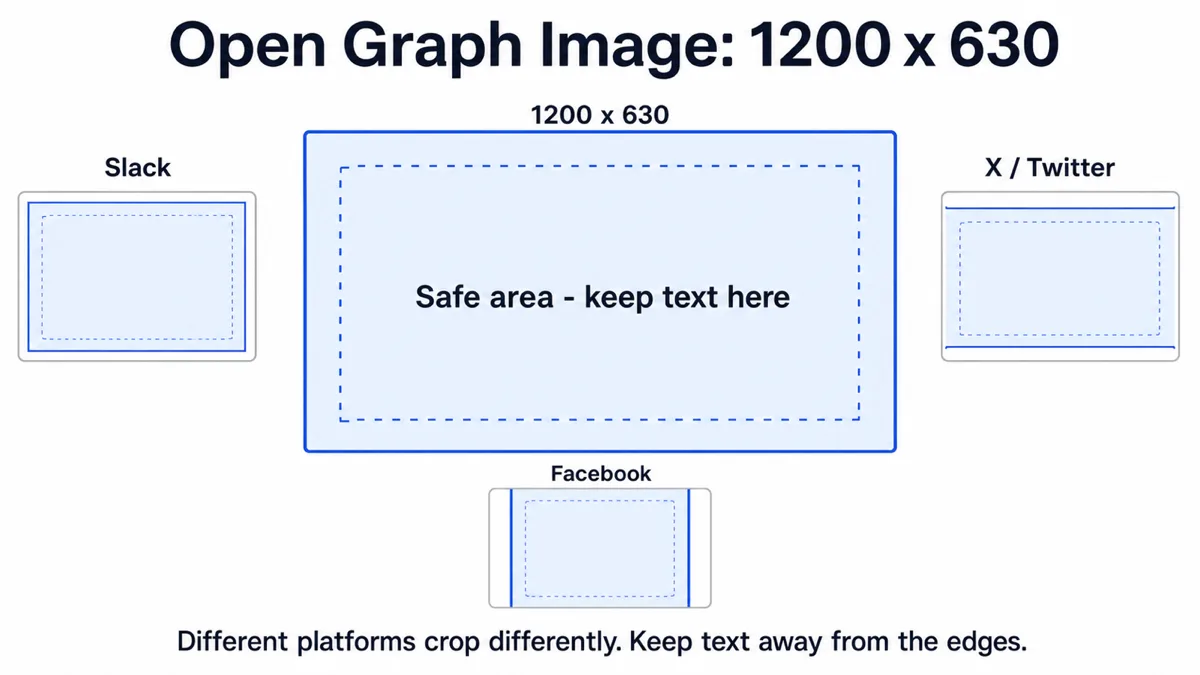
The de facto standard og:image size is 1200×630 pixels, an aspect ratio of roughly 1.91:1. This number is not arbitrary tradition — it is close to the widest aspect ratio most link- preview cards render at across Facebook, LinkedIn, Slack, and Discord, which means a 1200×630 image fills the card without the platform needing to letterbox or significantly crop it.
Smaller images technically work but get upscaled by the platform to fill the card, which softens detail and can look noticeably worse than a purpose-built image. Most platforms document a minimum around 200×200 for the image to be accepted as a preview at all, but treat that as a floor, not a target — anything meaningfully below 1200×630 is leaving quality on the table for no benefit.
Twitter/X's summary_large_image card uses the same 1200×630 image and the same aspect ratio, so one image generally serves both og:image and twitter:image without needing a separate export.
Safe area: what actually survives the crop
Even at the correct aspect ratio, different platforms crop the card slightly differently depending on surface — a feed post, a DM link preview, and a sidebar "shared links" module are not always the same crop of the same image. Text or a logo placed flush against an edge can get clipped on one surface even though it looked fine in your own browser tab preview.
The safe practice is to keep essential content — a headline, a logo, a face — within the inner 90% or so of the frame, leaving a margin of roughly 5–10% on every edge. Background imagery, gradients, and decorative elements can safely run to the full bleed; only content you need every viewer to see should stay inset. If your design tool supports it, drawing a guide rectangle inset by about 60px on each side of a 1200×630 canvas gives you a reasonable working safe area.
Format: JPG or PNG, and why not WebP
For the actual image file, JPG and PNG are the safe choices. WebP support for og:image specifically is inconsistent across the crawlers and unfurl bots that generate link previews — some support it, some silently fail to render a preview at all when given a WebP, and because the failure is silent, it is easy to ship a broken preview without noticing until someone points it out.
This is a narrower compatibility bar than serving WebP to a browser, which almost every current browser handles fine — see our WebP vs PNG vs JPG comparison for the general case. Link-preview crawlers are a different, more conservative population of clients than end-user browsers, and their WebP support lags. Use JPG for photographic preview images (smaller file size at equivalent visual quality) and PNG when the image has flat colors, text, or needs transparency preserved in some contexts — though transparency itself is moot for an OG image, since it always renders against whatever background the platform's card uses.
GIF is technically accepted by most platforms as a static image but is not a meaningful choice for a photographic or design-heavy preview image; there is no practical reason to use it over JPG or PNG here.
The URL has to be absolute
<meta property="og:image" content="/og-image.jpg" /> looks reasonable and works fine when you view the page directly in a browser, because the browser resolves the relative path against the current page's own URL. Link-unfurling crawlers frequently do not perform that same resolution reliably, or resolve it against the wrong base — the practical result is a broken image or no image at all on some platforms while it works on others, which makes the bug confusing to diagnose from user reports alone.
Always write the full, absolute URL, including scheme and domain:
<meta property="og:image" content="https://example.com/og-image.jpg" />
In Next.js's Metadata API, this means setting metadataBase in the root layout so relative image paths declared in page-level metadata get resolved to absolute URLs automatically at build time, or writing the full URL directly in each page's openGraph.images entry as this site does.
Cache: why a fixed image still shows the old preview
This is the single most common source of "I fixed it but it still shows wrong." Platforms cache the scraped Open Graph data — including the image — per URL, and that cache does not expire just because you deployed a new file. Reloading the page yourself, even in a private window, tells you nothing about what the platform's cache still holds.
Each major platform has its own tool to force a re-scrape:
- Facebook / Meta: the Sharing Debugger (developers.facebook.com/tools/debug/) — paste the URL and click "Scrape Again." This also clears the cache used by Instagram and WhatsApp link previews, which share Meta's crawler.
- X/Twitter: the Card Validator has historically served this purpose; availability has changed over time, so if it is unreachable, appending a harmless version query string to the URL (see below) is the more reliable fallback.
- LinkedIn: the Post Inspector (linkedin.com/post-inspector/) — paste the URL to force a re-fetch.
- Slack, Discord, iMessage: no public debugger. These generally expire their own cache after some time on their own schedule, or refresh when the URL changes even slightly.
When a platform-specific debugger is unavailable or is itself being stubborn, the universal workaround is changing the URL the platform sees — appending a version query string like ?v=2 to the shared link, or to the image URL itself, forces every platform to treat it as an unseen resource and re-fetch rather than serve a stale cache entry.
File size and other limits
Most platforms document an image size ceiling in the low single-digit megabytes — Facebook's documented limit has historically sat around 8MB, and platforms that do not publish an explicit number still tend to time out or decline to render a preview for an unusually large file. Since a well-compressed 1200×630 JPG or PNG for this kind of content typically lands well under 500KB, hitting a size limit in practice almost always means an unoptimized export — a huge source photo scaled down in markup but not actually re-encoded at the smaller dimensions, or a PNG export of photographic content instead of JPG. See our guide to reducing image file size for the general approach to bringing an export down without visible quality loss.
Text legibility at thumbnail size
An OG image usually renders far smaller than its native 1200×630 pixels — a Slack unfurl or a mobile feed card can display it at a few hundred pixels wide. Any text baked into the image needs to survive that reduction. As a working guideline, body text under roughly 40px at the image's native 1200px width tends to blur into illegibility once scaled down for typical feed placements; headline text intended to be readable at thumbnail size generally wants to be considerably larger — closer to 60–80px or more, in bold weight, with strong contrast against its background.
This is also a reason to keep the image itself simple. A busy composition with several competing text elements might read fine full-size but turns into visual noise at card scale; a single clear headline over a high-contrast background reads reliably across every surface the image ends up on.
twitter:card needs its own declaration
Setting og:image is not automatically sufficient for a large image preview on X/Twitter. Twitter's card system reads its own twitter:card meta tag to decide the card style, and without it, some Twitter clients fall back to a smaller thumbnail-style card even though a perfectly good og:image is present.
Declare it explicitly:
<meta name="twitter:card" content="summary_large_image" />
Twitter will fall back to og:image for the actual image if twitter:image is not separately set, so you generally do not need to duplicate the image URL — but the card type declaration itself is not optional if you want the large-image layout.
A quick diagnostic order
- Confirm the image URL is absolute, not relative, and loads directly in a browser.
- Confirm the format is JPG or PNG, not WebP.
- Confirm the dimensions are at or near 1200×630.
- Confirm twitter:card is set if the Twitter/X preview specifically is wrong.
- Run the platform's debugger tool to force a re-scrape before assuming the fix did not work.
- If no debugger is available, bump a version query string on the URL to bust the cache.
Frequently asked questions
Can I use a different image for Facebook versus Twitter/X?
Yes — set twitter:image to a different URL than og:image if you want platform-specific art. Most sites do not bother, since both platforms use the same 1200×630 aspect ratio and one image serves both cleanly.
My image works on Facebook but not in a WhatsApp share. Why?
WhatsApp and Instagram link previews use Meta's crawler infrastructure, so scraping again through Facebook's Sharing Debugger typically fixes both. Persistent WhatsApp-only failures are more often a robots.txt or server response issue blocking that specific crawler's user agent than an image problem.
Does the image need alt text?
Some platforms support og:image:alt for accessibility, and it costs nothing to include a short, accurate description. It has no effect on whether the preview renders, only on what screen readers announce for it.
Is a static export like this site's compatible with per-page OG images?
Yes. Since the image URL and metadata are just static tags emitted at build time, a statically exported site can set a different og:image per page the same way a server-rendered site does — nothing about OG images requires a live backend.
Your card is a WebP. Fix that first.
This is the single most common reason a preview comes back blank. The Image Converter turns a WebP card into the JPG or PNG that crawlers actually accept, in batch if you have several, and fills the background where alpha would otherwise go black in a JPG. Everything runs in your browser — nothing is uploaded.
Open Image Converter