How to Convert DNG to JPG for Sharing While Keeping Your RAW Original
You photographed a product or landscape in RAW, then discovered that the marketplace, messaging app, or client portal will not accept a .dng file. You need a shareable copy—not to throw away the original that gives you room for later editing.
A DNG is not a JPEG with a different extension
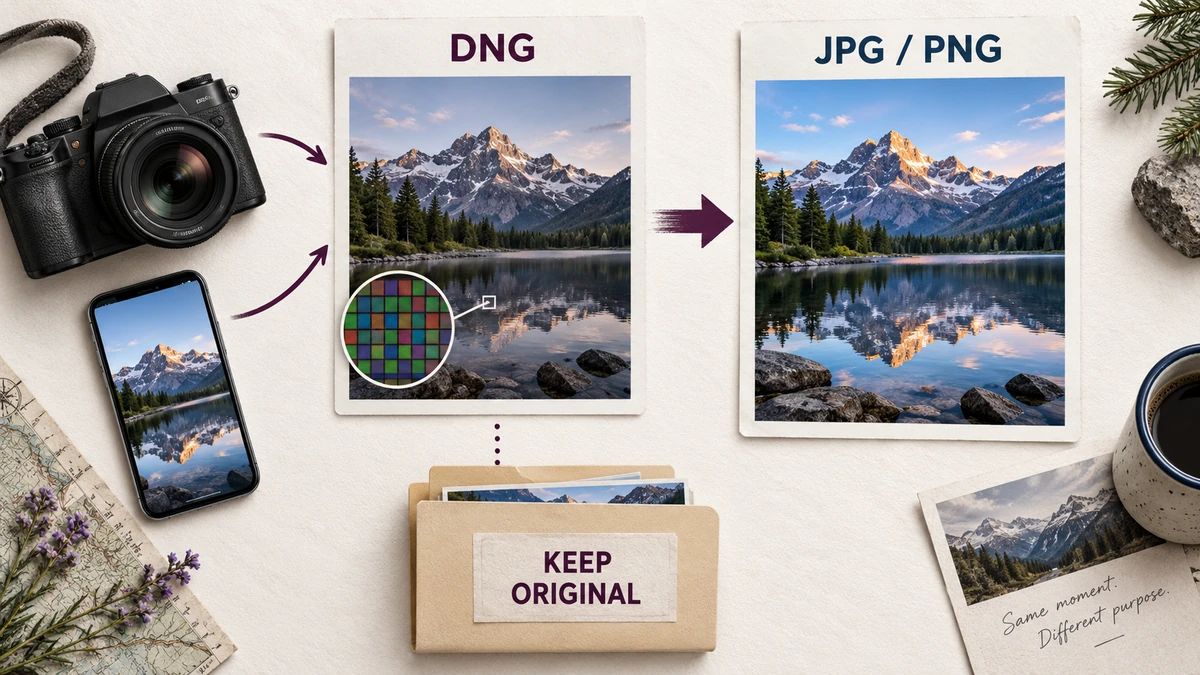
DNG can hold RAW image data and the information needed to interpret it. The image must be developed into normal viewable pixels before it can become a JPG. Depending on the source, development involves steps such as white balance, color conversion, demosaicing, and brightness handling. Linear DNG data is already different from a Bayer sensor mosaic, so not every DNG follows exactly the same processing path.
That is why a RAW photo can look different in two applications. Each may interpret the data with different profiles, tone curves, edits, or computational adjustments. A converter can make a useful sharing copy without reproducing every decision made by your camera app. Treat conversion as rendering an interpretation, not copying a universally fixed appearance.
Use a sharing converter or a RAW editor?
| Your goal | Better starting point | Reason |
|---|---|---|
| Quickly share an unedited DNG | DNG to JPG converter | A direct developed copy may be enough |
| Match a finished edit exactly | Export from the editor that holds the edit | The converter does not read your editing project |
| Recover highlights or correct exposure | RAW editor | Requires intentional development controls |
| Preserve the capture for future editing | Keep the original DNG | A rendered PNG is not a RAW archive |
ImageMint’s converter uses LibRaw development with camera white balance and an sRGB output setting. It does not offer exposure adjustment, custom camera profiles, local masks, or highlight recovery controls. If the default rendering is not the look you want, return to a RAW editor rather than repeatedly re-encoding the same JPG.
Convert one representative photo first
- Save the DNG original separately. Do not overwrite or delete it just because a JPG looks acceptable today.
- Add a .dng file to the converter. A phone brand is not a support guarantee: the exact camera and compression matter.
- Leave half-size development off if you need the normal developed dimensions. Choose JPG at quality 90 as a starting point for sharing.
- Press Convert photos and wait for the RAW development stage. The decoder runs in a worker, but large files can still consume substantial memory.
- Check the downloaded result against the intended use. Only then add the rest of the collection and convert it as a batch.
The tool does not fall back to extracting an embedded thumbnail when RAW development fails. A supported file becomes developed pixels; an unsupported variant reports an error. This distinction matters because an embedded preview can be smaller or show a different rendering. A quick-looking result is not necessarily proof of full RAW processing in other tools.
Do not confuse JPG quality with development quality
The JPG quality slider controls compression after development. Raising it cannot fix a white-balance mismatch, recover a clipped highlight, or apply an edit from your camera app. Compare detail such as text on a label or fine foliage to decide whether the compression is acceptable. If the whole image is too dark or the color interpretation is unsuitable, that is a development issue rather than a JPEG quality setting.
PNG avoids additional lossy compression of the rendered pixels. However, the converter produces 8-bit output for both formats. A PNG does not preserve all RAW data, source bit depth, HDR information, or later exposure-editing flexibility. Use it when you specifically need lossless storage of this rendering and can accept the larger download—not as an automatic “best quality” replacement for DNG.
When half-size development helps
If a large RAW file is slow or puts too much pressure on a phone, try one photo with Half-size RAW development enabled. Depending on the RAW type, this can reduce the rendered dimensions and processing load. Verify the displayed output dimensions instead of assuming every DNG becomes exactly half as wide and tall. The original file still has to be read and opened, so this option does not eliminate all memory requirements.
The queue accepts up to 200 files or 512 MB of originals, but that is a safety boundary, not a recommendation to fill a phone with 200 large RAW files. Each DNG is limited to 100 MB, with a 60-megapixel and 16,384-pixel-side image boundary. Work in smaller groups if necessary. Stop conversion cancels the current worker while keeping completed downloads available.
Check color, dimensions, and privacy before delivery
- Open the saved result in an image viewer and inspect orientation.
- Check important colors under a consistent viewing setup; a phone HDR display and a standard web image may differ.
- Check small detail at 100% zoom, rather than judging from a tile preview.
- Confirm dimensions against the recipient’s requirements, especially after half-size development.
- Keep the DNG for later adjustments. The converted download does not include the original camera or GPS metadata.
Apple documents ProRAW as DNG and explains how sharing behavior can depend on whether you send the original or an edited image. If you want the edited appearance from Photos, use that app’s appropriate export or sharing workflow instead of expecting this converter to recreate the edit. See Apple’s ProRAW guidance.
For a final upload-size restriction, process the developed JPG with Image Compressor. For specific pixel dimensions, use Image Resizer. Deliver the file your recipient can use, but keep the capture that lets you make a better version later.
Try the workflow
Develop supported DNG pixels into JPG or PNG, with sequential batch processing, optional half-size development, and downloadable previews.
Open DNG to JPG Converter →