
Fix a Jumping Sprite Animation: Canvas Size, Baselines, and Trim Offsets
Every pose looks fine by itself, but the character jumps when you play them. Speed is rarely the first thing to change. Determine whether the movement comes from the drawings, different crop origins, or the last-to-first transition.
Pause and compare the actual frame bounds
Load the sequence and click through thumbnails without playing it. Record each source frame’s dimensions in your editor. A 64 × 64 pose followed by a tightly cropped 28 × 45 pose no longer describes the same coordinate system. Centering them in a preview can make them look plausible while moving the character’s feet.
The Sprite Sheet Animator centers smaller frames inside the largest canvas when exporting GIF. It does not infer a foot, pivot, or weapon handle. For precise alignment, prepare a common transparent canvas before uploading rather than relying on automatic centering.
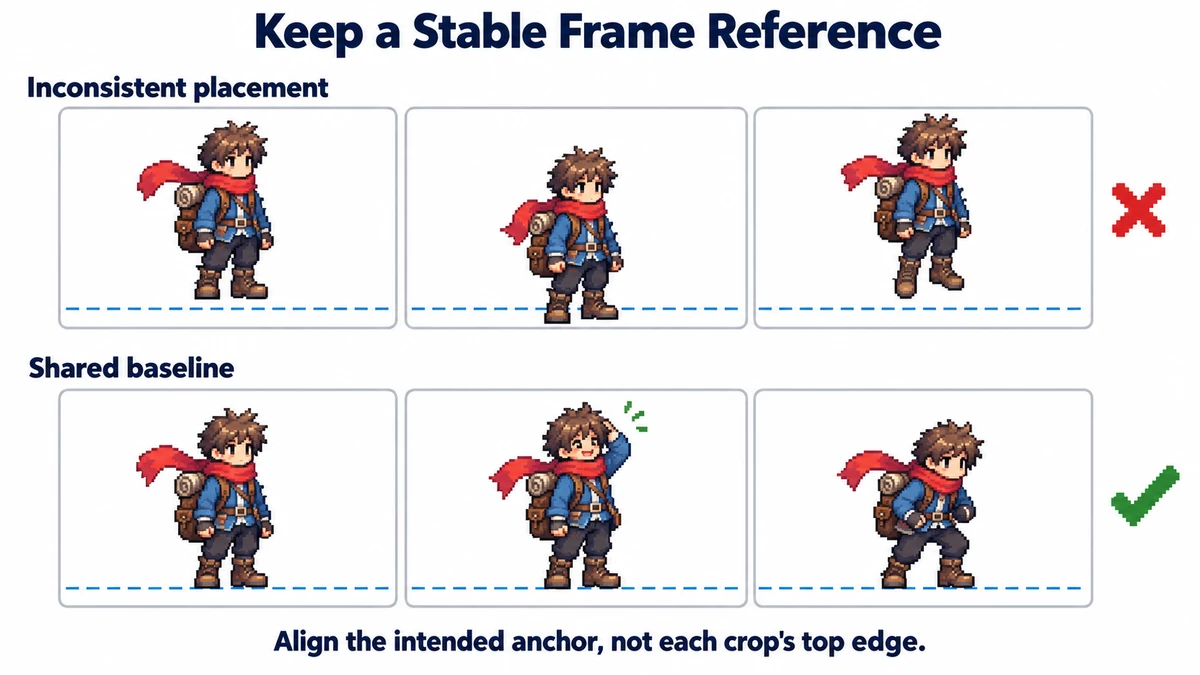
Choose an anchor appropriate to the motion
| Sequence | Useful reference | Avoid |
|---|---|---|
| Grounded idle | Floor baseline and planted foot | Aligning the head’s top |
| Rotating UI icon | Intended rotation center | Centering each changing crop |
| Weapon swing | Handle or attachment point | Aligning the blade tip |
| Explosion | Intended effect origin | Forcing every asymmetric pose to look centered |
A walk includes intentional body movement. Do not pin every part of the character to the same coordinate. A grounded foot can stay on the floor while the torso rises. Choose the reference that expresses the animation’s purpose, and leave the intended motion elsewhere intact.
Restore trimmed frames when offsets exist
If Aseprite exported a 22 × 38 crop from a 64 × 64 pose at offset (19, 20), create a transparent 64 × 64 image and put the crop back at (19, 20). The matching JSON provides this offset through spriteSourceSize. Atlas coordinates in frame say where to read pixels, not where to place them in the restored pose.
Use the unpacker when metadata is available. If only tightly cropped PNGs remain, the original offsets are missing: align them manually against a reference in an editor. Neither a higher FPS nor a larger GIF can recover those coordinates from a crop alone.
Distinguish an alignment jump from a sequence jump
- Inspect adjacent poses slowly. If the same anchor changes relative to the canvas because of cropping, repair the source placement.
- If a body abruptly changes pose but the anchor is stable, check whether a frame is missing or out of order.
- Inspect the final pose followed immediately by the first. A sequence can be smooth internally and still fail at the loop boundary.
- Only after those checks, choose the playback speed. Increasing FPS hides some jumps but does not repair them.
Verify the output without turning intentional motion into a defect
A recoil, hop, or lunge can legitimately move the anchor. Compare with your intended action rather than flattening the sequence into a static silhouette. Keep an aligned lossless version, export the GIF, and watch several loops. GIF color changes and delay rounding are separate from spatial alignment.
Try the workflow
Step through frames, compare their anchors, reorder the sequence, and preview the loop before GIF export.
Inspect animation frames →